1
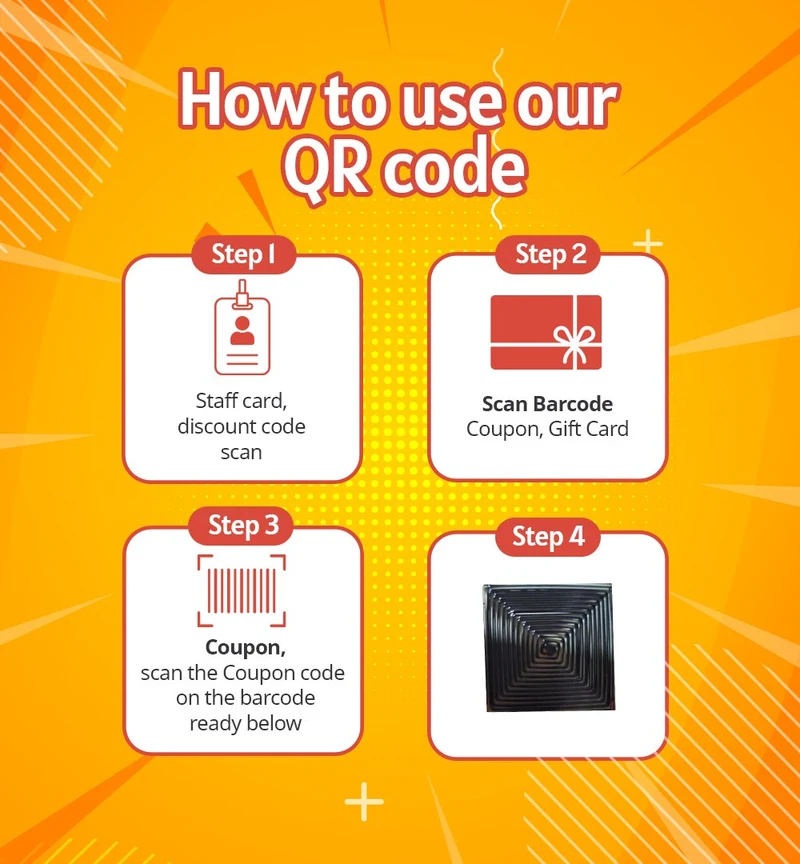
Step 1
Tap "Staff Card / Discount Code"
On the CraveBot touchscreen, tap the Staff Card, Discount Code Scan option. This opens the barcode scanner on the kiosk and prepares it to accept your QR code or coupon.
2
Step 2
Select "Scan Barcode" — Coupon or Gift Card
Choose whether you're redeeming a Coupon or a Gift Card. Select the option that matches what you received. The scanner window will open on screen.
3
Step 3
Scan Your Coupon Code
Hold your QR code or barcode up to the scanner on the kiosk. The scanner is located on the front panel — align your code with the scanning window and hold steady until it beeps or confirms.
Make sure your screen brightness is turned up so the QR code is clearly visible. Most phones need at least 70% brightness for a reliable scan.
4
Step 4
Discount Applied — Place Your Order
Once your code is accepted, the discount or credit will be applied to your order automatically. Browse the menu, select your meal, and complete your purchase. Your CraveBot will start heating your food right away — ready in under 3 minutes!
Codes are single-use. If your code isn't scanning, make sure it hasn't already been redeemed, or contact us for a replacement.